Overview
Justworks Integration
Justworks offers a modern yet simplistic human resource management tool that supports 24/7 payroll and HR requirements.
How does this integration help Sprinto
The integration primarily helps Sprinto retrieve staff-related information such as name, email address, job roles, onboarding dates, reporting managers, etc. These details are crucial for managing compliance needs related to people management. Sprinto initiates relevant checks if any of the required information needs to be updated to ensure compliance framework requirements are met.
Sprinto checks for Justwork
Here's a list of Sprinto checks available for Justwork integration, along with reference procedures on how to fix them:
| Sprinto check | Check description | Reference procedure |
|---|---|---|
| Staff role should be assigned | All in-scope staff members must have an assigned staff role. | How to fix |
| Staff role should be assigned | All in-scope staff members should have an assigned reporting manager. Note: Top management roles like CEO, CTO, etc. are exceptions. | How to fix |
| Staff role should be assigned | Define the joining date for all newly onboarded staff members. | How to fix |
Before you begin
- Log in to Sprinto as an administrator.
- You must have a paid account on Justworks to integrate it on Sprinto.
- Make sure you have “Admin” access for the Justworks account.
- We use a third-party service provider (Merge) to enable this integration.
Integrate Sprinto with Justworks
- Creating a service account on Justworks.
-
Login to your Justworks account using your credentials.
-
Go to Manage > Employees page.
-
On Team management page, click Add to create a new employee.
-
Scroll down to Add third party or temp option, then expand the option and click Add 3rd-party next to the 3rd-party admin or accountant option.
-
Take the following steps to add an employee to your Justworks account:
- Fill in the following details to the employee form:
-
| Employee detail | Value |
|---|---|
| Member Type | 3rd Party Admin / Accountant |
| Admin Access | Yes |
| First Name | Sprinto Technology Inc |
| Last Name | Service Account |
| Title | Service Account |
| Manager | Not required |
| Department | Not required |
| Office | Remote |
| Work Email | Enter the email address you have copied from Step 1. |
| Send Invitation to | Work email |
| Send | Now |
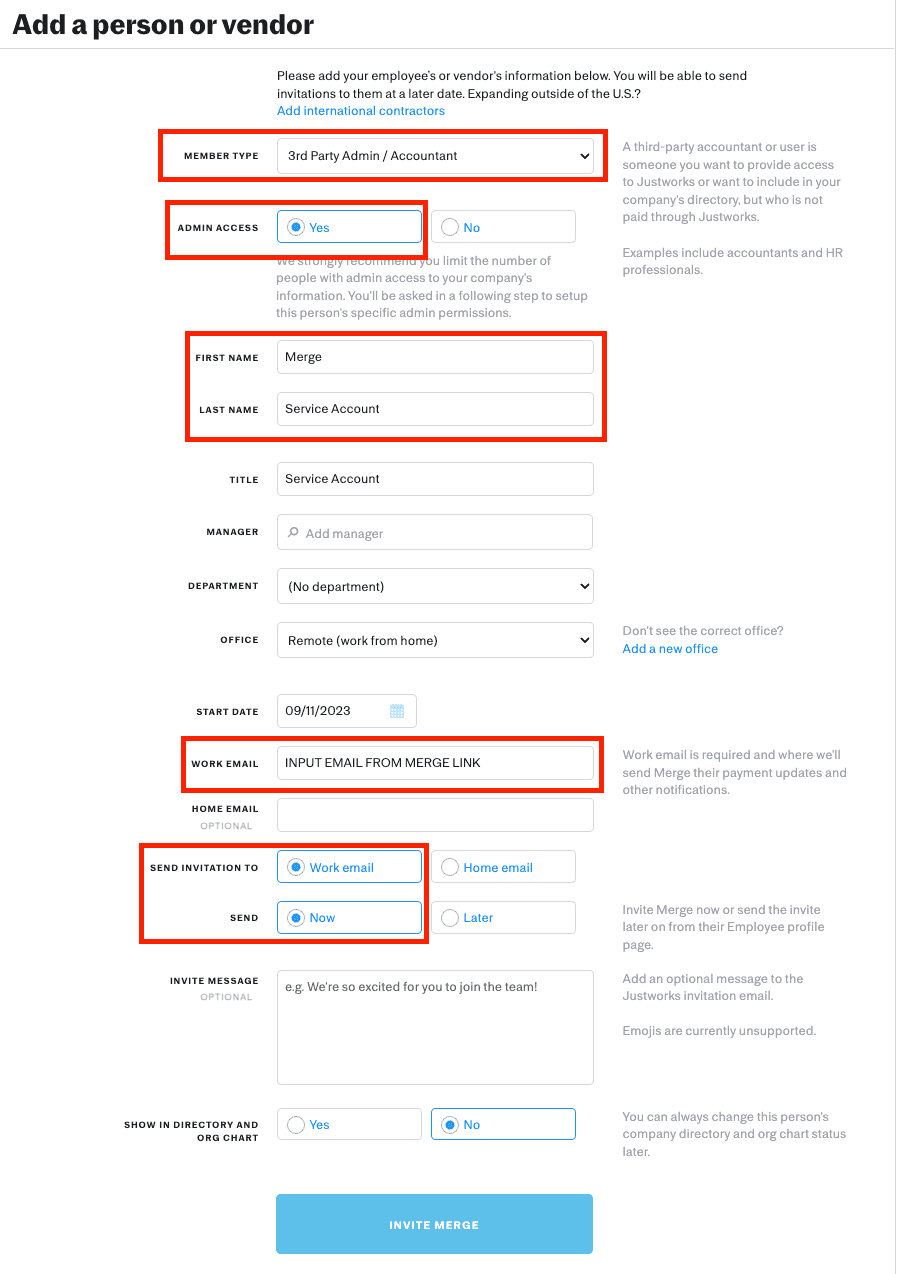
- Review the entered details, then click Invite Merge.
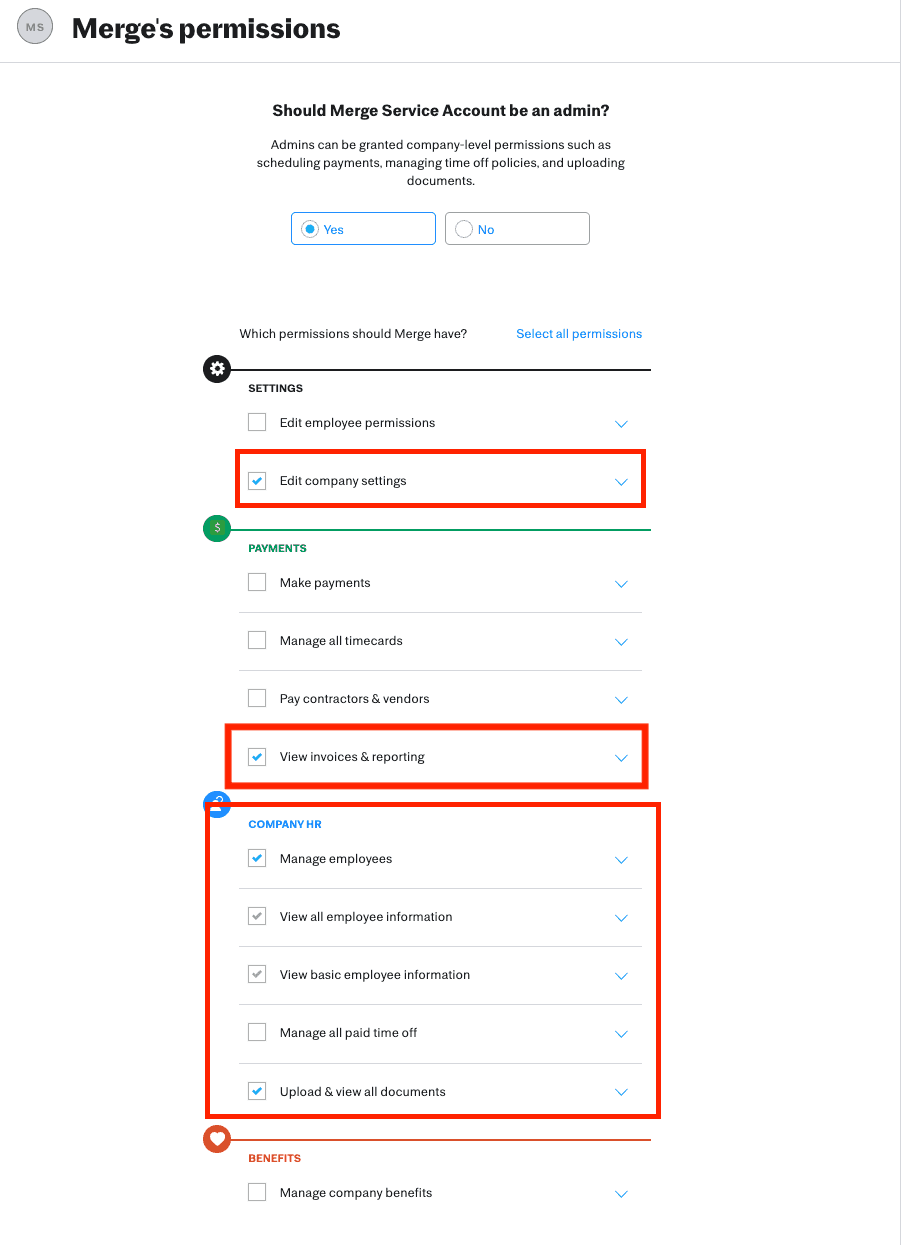
- Add the required permissions to the created employee. Sprinto requires all of the below permissions for the integration’s operation.
Note: Kindly provide all the mentioned permissions. If you miss adding any of the below permissions, integration may not work as intended.
| Permission type | Value | Description |
|---|---|---|
| Admin | Yes | To fetch the required information from Justworks to your Sprinto account. |
| Edit company settings | Selected | This is required for our integration to view Company Information, Office Information + Location, and Department Information. Although Merge will only be viewing this information, Justworks requires EDIT Access to view this information, but Merge will not actually be editing any settings. |
| Manage Employees | Selected | This permission is required to view Employee Information and access the Employee Census and Work History reports. |
| View all employee information | Selected | This permission is required to view Employee Information and access the Employee Census Report and the Work History Report. |
| View basic employee information | Selected | This permission is required to view Employee Information and access the Employee Census Report and the Work History Report. |
| Upload and view all documents | Selected | This permission is required to access the Employee Census Report and Work History Report. |
| View Invoices and Reporting | Selected | This permission is required to access the Employee Census Report and Work History Report. |
-
Integrate to Justworks on Sprinto.
-
Go to Settings > Integrations > Available tab, then click Connect next to Justworks.
-
Review the required permissions and click Next.
Note: Ensure you have a pop-up window enabled on your browser. -
Review the setup requirements and select the check box.
-
Click Connect to Justworks.
-
-
In the pop-up that appears, click I am an admin.
- Review the access requirements and click Next.
- Click Open window. This will redirect you to the Justworks website.
- Once you are redirected to the Justworks website, enter your administrator email address and password.
- After successful authentication, grant the required permissions requested by Sprinto.
Once authorised, Sprinto completes the integration and begins syncing data.
After Connecting Justworks
After the connection is successful:
- Sprinto automatically imports data from Justwotks.
- Related checks are updated automatically for onboarding and periodic requirements.
If the connection fails or permissions are insufficient, return to Settings → Integrations → Justworks to retry or reauthorise.